AI assistants have become part of communicators’ everyday work. We use them to write drafts, summarise documents and look up information. But when you ask an assistant what the media have written about your company, it relies on general web search. That means it sees only part of what is publicly available online, and none of the print, radio and TV coverage that often matters most.
MCP (Model Context Protocol) is an open standard that lets AI assistants connect securely to external data sources. Once you connect your assistant to Servanta.ai, it no longer searches the web when you ask about the media, but the archive our team prepares for you every day. This means the answers are reliable and accurate, because they are based on the same material you receive in your clippings.
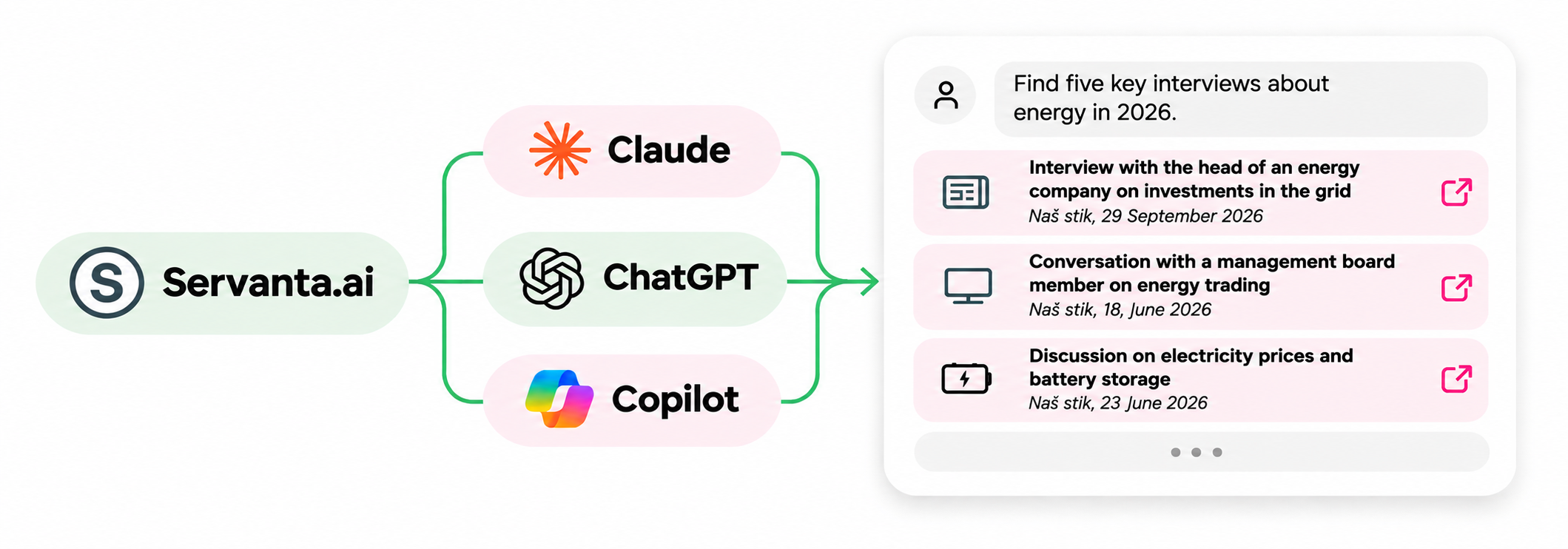
The connection gives the assistant three core capabilities:
• searching coverage by keywords, phrases or the meaning of your question, filtered by period, country, outlet, topic or author,
• reading the full text of an individual article, which is the basis for an accurate summary or comparison,
• finding similar coverage when you come across an article that interests you and want to see where else the topic has appeared.
On this basis, the assistant prepares whatever you need: a list, a summary, a comparison or a draft report. For every item it cites, it gives the outlet, the publication date and a link (if the item is online), so you can check everything.
The assistant does all of this in the archive we at Kliping have been building for more than 20 years. So it doesn’t just search the last few weeks or months, but two decades of the Slovenian media landscape. It can compare today’s coverage with coverage from years ago, find when a topic first appeared in the media, or check how the emphasis of the same story has shifted over time.
It works best when you write to the assistant the way you would write to a colleague. A few examples:
1. Morning briefing: “Summarise yesterday’s coverage of our company and highlight anything that needs a response.”
2. Preparing for a meeting or interview: “Find five key interviews on energy in 2026 and explain why each one matters.” The assistant returns a selection of interviewees, outlets and dates with a short rationale, such as an interview with the head of an energy company about grid investments or a conversation with a member of a management board about energy trading.
3. Competitor monitoring: “Compare how the media covered us and [COMPETITOR] this month. Where do the topics differ?”
4. Comparing periods: “How did coverage of our campaign change between October and November?”
5. Crisis communication: “Find all coverage mentioning [TOPIC] and check whether the story has spread from online media to radio and TV.”
6. Preparing materials: “Based on last quarter’s coverage, prepare a draft summary of our media presence for the management board.”
7. Building media lists: "Check who has written about wind farms over the past year and build a media list of all the journalists who covered the topic." The assistant prepares a list of journalists with the outlets they wrote for and the number of their articles. You then add the contact details yourself.
Important: the assistant is a helper here, not a substitute for professional judgement. For important decisions and reports that will be passed on, we recommend reading the key articles yourself, and our analysts remain available for in-depth analyses.

Through the connection, the assistant sees the entire archive we build for you. For clients who have been with us for many years, this means comparisons and searches can reach far back: how coverage of the company has changed over the years, who the key interviewees were in past campaigns, or how the media covered a similar event five years ago.
This is value that general web search cannot offer. Until now, a multi-year archive was mainly a collection you turned to on special occasions. With an assistant, it becomes a resource you can use every day.
The AI Chat built directly into Servanta.ai remains available and is the quickest way to an answer when you are already in the platform. The main difference lies in how much material the AI can work with.
AI Chat in Servanta.ai processes up to 300 articles at a time. We set this limit deliberately: at that volume, the AI can still summarise and compare reliably, without inventing details. For questions about a selected set of articles, such as last week's coverage or a single campaign, that is more than enough.
Through the MCP connection, the assistant is not limited to a preselected set of 300 articles. It searches the archive itself, pages through the results and reads the full text only of the articles that matter for your question. This makes it better suited to broader questions covering longer periods or several years, and to tasks where you combine media coverage with other work in your assistant, such as writing a report, an email or a presentation.
In short: use AI Chat in Servanta.ai for a quick look at selected articles, and the MCP connection for broader analyses and the work you already do in your AI assistant.
Servanta.ai is available in the app stores of all three assistants, so connecting takes just a few clicks. All you need is an active Servanta.ai account and access to your assistant. Then follow the steps below:
Claude
On Team and Enterprise plans, the account owner must first enable the connector (Browse connectors → Add to your team), after which each user connects with their own account. To switch the connection on in a chat, use + → Connectors.
ChatGPT
In Business, Enterprise and Edu workspaces, the administrator decides which apps are available. If you can’t see Servanta.ai, contact them.
Microsoft Copilot
Once the connection is set up, the archive is also available on the go, in the Claude, ChatGPT and Microsoft 365 Copilot mobile apps.
In some organisations, internal policies restrict adding connectors or apps to AI assistants. If you can’t find or connect Servanta.ai, contact your IT department. If you need help, put us in touch with them and we’ll work together to get the connection up and running.
Media clipping has always been the foundation for understanding how the public sees you. With the Servanta.ai MCP connection, that foundation becomes part of the tools communicators already use, instead of a separate window we open when we have time. Technology will keep changing, and assistants will come and go. What stays the same is the question of which data we rely on when we make decisions.
You can read more about Servanta.ai athttps://kliping.si/en/services.